I wanted a figure from a PDF. Why did I get hundreds of pieces?
You’re reading a paper and find a diagram you want to put in a presentation. You need the diagram with its labels, arrows, and panels intact. You search for “extract images from PDF,” upload the paper, and download the results.
Then you open the folder. There are hundreds of files. One contains a strip of color. Another contains half a drawing. The figure you wanted is still sitting in the PDF, waiting for you to take a screenshot.
That is the failure mode this test is about.
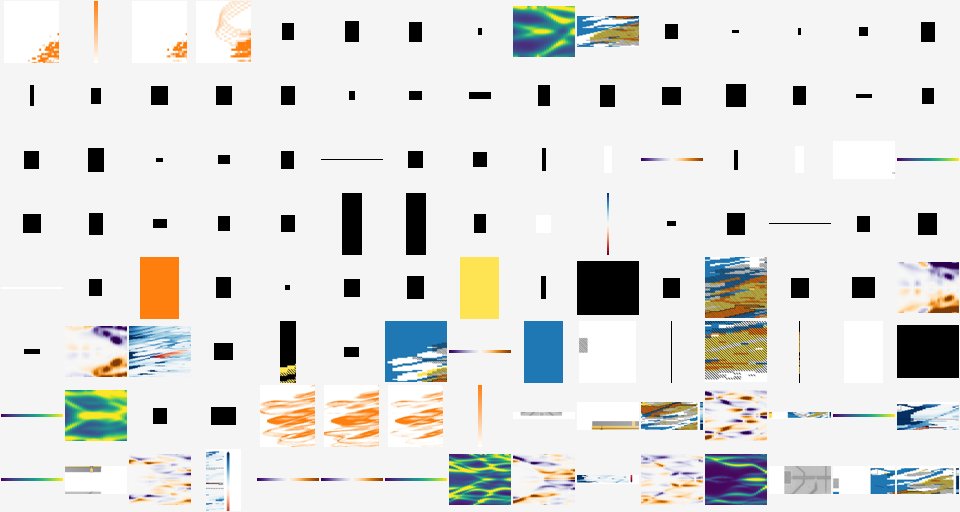
Part of one iLovePDF download: 375 image files from a single paper. This grid shows 120 of them.
A figure here means the composed visual on the page: panels, labels, arrows, and captions as a reader sees them. It is not the same thing as each image object the PDF happens to store underneath.
The same paper, four tools
We compared PDF24, APITemplate.io, iLovePDF, and PDF Extractor on the same 54-page research paper, Morteza Aghaee et al., InAs-Al hybrid devices passing the topological gap protocol (Physical Review B 107, 245423, 2023). The paper contains 36 labeled figures (FIG. 1 through FIG. 36). The practical question was simple: could we get a figure out of the paper and use it?
| Tool | Files saved | vs 36 labeled figures | What you get |
|---|---|---|---|
| PDF24 | 375 | About 10× the figure count | Embedded image objects |
| APITemplate.io | 382 | About 10× | Embedded image objects (13 separate images on page 5 alone) |
| iLovePDF, Extract images mode | 375 | About 10× | Embedded image objects |
| PDF Extractor Desktop, Image category | 37 | 36 figures + 1 overlapping panel crop | Page-rendered figure crops |
A useful extractor for this job should land near the figure count, not hundreds of pieces. File count alone tells you very little about whether the job is done.
All four tools received the same full document. PDF Extractor Desktop scanned all 54 pages at 150 DPI with the Image category selected and saved 37 PNG crops across 35 pages.
We checked those crops against the paper’s 36 labeled figures (FIG. 1–36). Every figure’s first-appearance page produced at least one Image crop. The counts line up as follows: 35 pages host the 36 figures (page 34 has both FIG. 25 and FIG. 26), and page 35 adds a second crop that overlaps panel (b) of FIG. 27, which is already included in the larger crop on that page—hence 37 files for 36 figures. Crops can still truncate labels or edges (see FIG. 2 on page 5); this check is about whether each labeled figure was detected, not whether every panel is publication-perfect.
That still leaves a much smaller set of images to review than the hundreds of files from the other tools. To see what the difference means in practice, look at FIG. 2 on page 5.
Page 5: one figure, many pieces
FIG. 2 is a multi-panel figure (schematic, SEM image, density sketch, and cross-section). Here is how it appears in the paper:
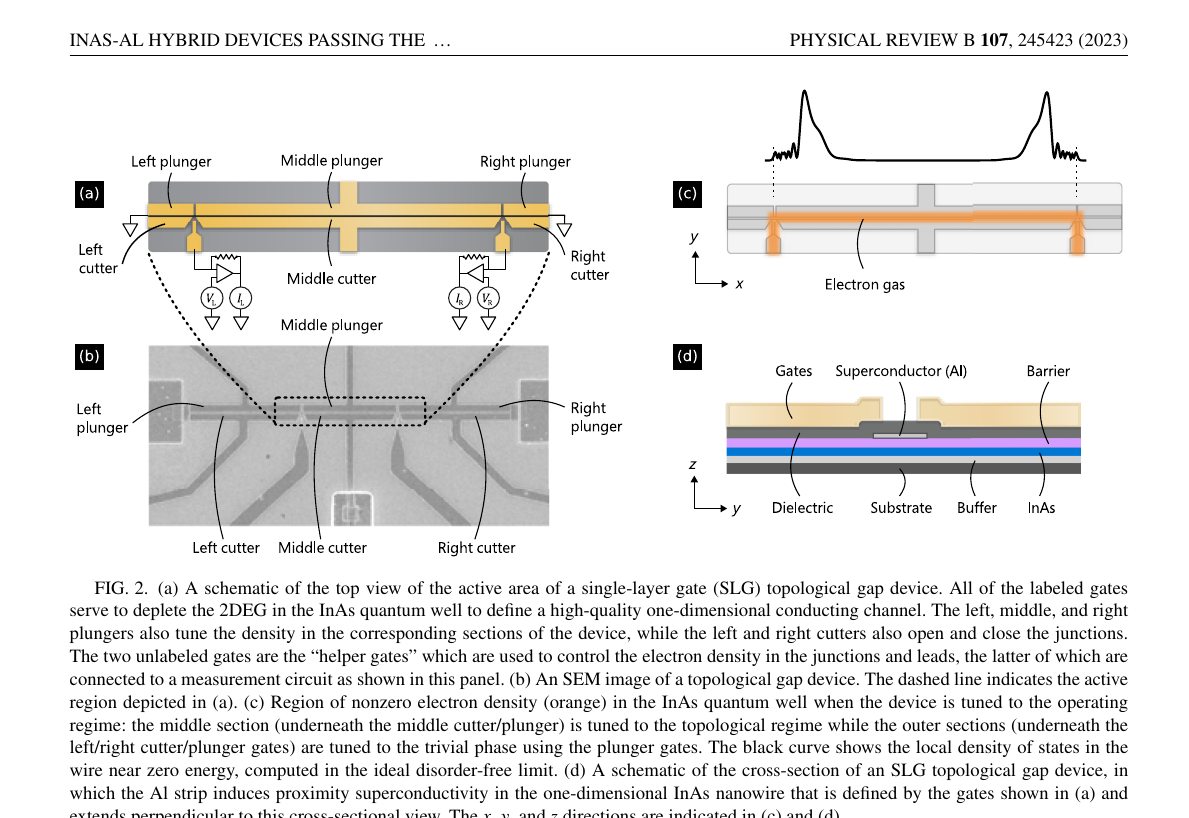
FIG. 2 as printed (page 5 render at 150 DPI), including the caption.
The fragment tools pull apart the stored image objects. APITemplate.io alone listed 13 separate images on that page:
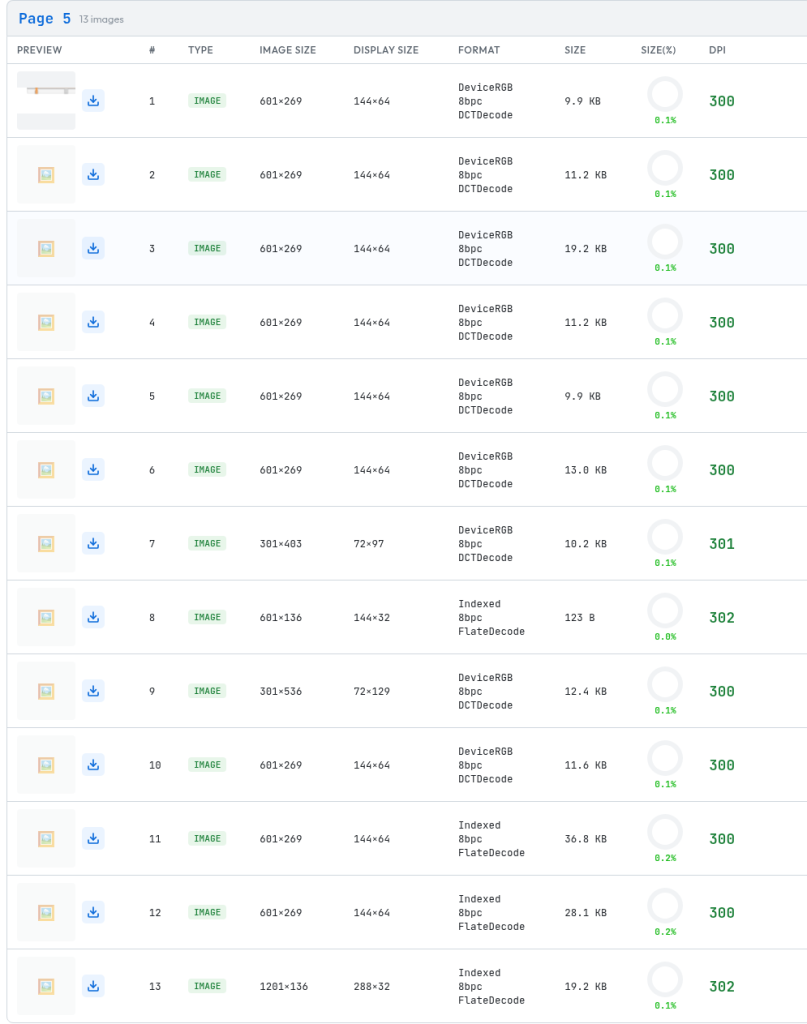
APITemplate.io page-5 detail: 13 image objects from one figure page.
Here are actual saved fragments from the embedded-image extractors:

iLovePDF output: img119.jpg, 601 × 269 pixels.

PDF24 output: 102.jpg, 539 × 270 pixels — one scrap from the 375-file download.
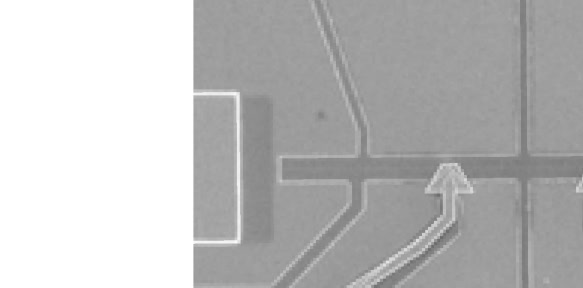
APITemplate.io output: from 15.png, 583 × 288 pixels — a stored object, not the assembled figure.
There’s no useful diagram to put on a slide in any of these. You’d have to find the other pieces, work out where they belong, and recover the missing labels. At that point, taking a screenshot starts to look easier.
Here’s PDF Extractor’s output for FIG. 2 on that page:
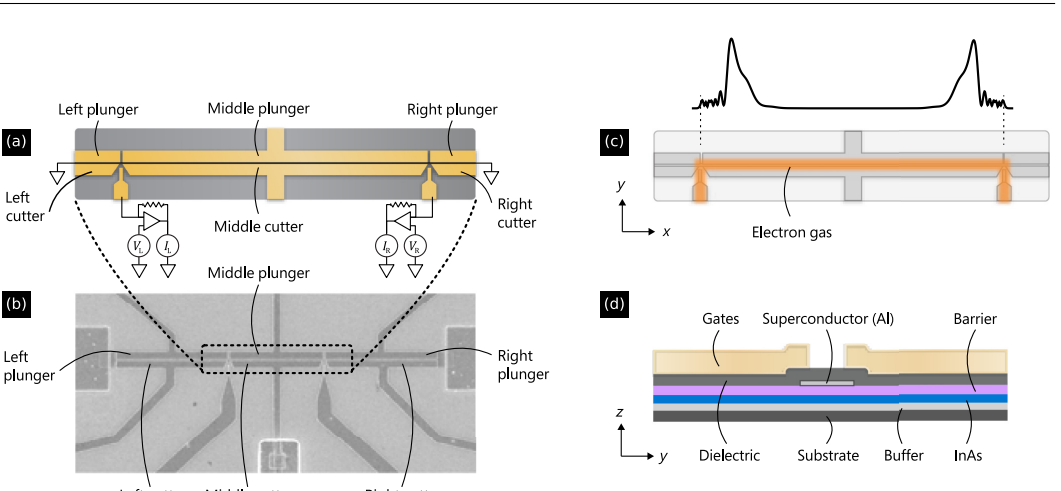
Desktop output: one 1061 × 491 PNG, extracted at 150 DPI with the Image category selected.
The panels stay together. You can see how the drawing relates to the micrograph and the cross-section. That relationship is what makes the figure useful to a reader.
The crop still needs a check: its lower edge cuts through some labels. That matters if you’re going to present or publish it. Even so, it gives you the assembled figure to work with, without having to reconstruct it from separate files.
A folder full of fragments leaves the job unfinished
The reason for the fragments is fairly simple. A PDF can store one visible figure as several images, with text and drawing instructions added around them. Pulling out those stored images separately loses the composition you see on the page.
That explains the result. It doesn’t make the result useful for someone who needs the figure.
For a presentation, the labels need to stay beside the things they describe. For research notes, you need enough context to understand the figure when you come back to it. For a report, you need an image you can place, resize, and credit without spending time assembling pieces.
Those are the things an image extraction tool should help you do.
PDF Extractor detects the visual figure and saves a crop of the rendered page. On this example, that preserved the arrangement of the panels. This is the use case behind our PDF image extraction tool: getting the visual content out in a form you can work with.
Try it on your own paper—online or with PDF Extractor Desktop. Select the Image category, then ask a simple question: did you get figures you can use, or a folder of pieces?
Test notes: September 22, 2026. This comparison is published by PDF Extractor and covers one paper. Labeled-figure count (36) is the set of FIG. N captions in the PDF (FIG. 1–36). PDF Extractor Desktop processed pages 1–54 with Image selected, PNG output, 150 DPI, confidence 0.15, and IoU 0.45; its 37-file count was checked against saved PNGs and extraction metadata. A page-by-page check confirmed a crop on every figure’s first-appearance page; the extra file is an overlapping panel crop of FIG. 27 on page 35. PDF24 reported 375 images in its results UI (“PDF24 has extracted 375 images from your file”) and the download contained 375 files. APITemplate.io reported 382 images in its results UI and 13 images on page 5; the downloaded ZIP contained 375 files, and the same UI also showed “Pages 30” for this 54-page PDF (tool quirk—we report the on-screen image count). iLovePDF Extract images mode does not show a numeric count on the success screen; the verified count is 375 JPG files in the downloaded ZIP. Fragment images and the folder grid above are actual saved outputs from those runs. We did not manually reassemble the full fragment folders.
Figure credit: Morteza Aghaee et al., “InAs-Al hybrid devices passing the topological gap protocol,” Physical Review B 107, 245423 (2023), doi:10.1103/PhysRevB.107.245423. © the authors, CC BY 4.0. Images above are extracted portions of the article; the PDF Extractor crop truncates some lower labels.