Advanced PDF OCR: Markdown, JSON, and structured tables
By the PDF Extractor engineering team.
Updated October 5, 2026 with click-focused title and meta for Search Console CTR.
PDF Extractor's OCR pipeline used to mean one thing: Tesseract, plain text. That's still there, and it's still the fast default. But both the web app and the desktop app now also ship an advanced OCR engine -- a vision-language model that reads a full page the way a person would, and hands back Markdown, JSON, or plain text with headings, reading order, multi-column layout, and tables preserved.
This post covers what changed, how it works on each platform, and how to call it from the UI, the REST API, the desktop CLI, or the MCP server.
What "advanced" OCR actually does differently
Tesseract recognizes characters inside an image. It doesn't know that a line of text is a heading, that two columns should be read top-to-bottom-then-across rather than straight across, or that a grid of numbers is a table with a header row. For a lot of scanned documents that's fine -- you just want the words.
The advanced engine is a vision-language model (VLM) instead of a character recognizer. It looks at the rendered page image and produces a structured transcription: heading levels, paragraph breaks, reading order across columns, and tables rendered as real Markdown/HTML/CSV tables instead of a wall of misaligned numbers.
Both engines plug into the same OCR modes PDF Extractor already had:
- Page mode -- transcribe the whole page in one pass.
- Element mode -- run OCR on individual detected regions (a cropped table, a caption, a figure) instead of the whole page.
The advanced engine is currently page-mode only -- that's where layout reconstruction matters most. Element-mode OCR still uses Tesseract. The PDF OCR workflow covers the page and element modes so you can choose the right transcription approach.
Three output formats
Full-page advanced OCR returns one of:
text-- plain transcription, no markup. The default, matches Tesseract's shape.markdown-- headings, lists, emphasis, and tables as GitHub-Flavored Markdown. Ready to drop into a doc, a wiki, or an LLM prompt.json-- structured output for programmatic consumption: the page broken into typed blocks instead of a single text blob.
Tesseract only ever produces text; Markdown and JSON are advanced-engine-only.
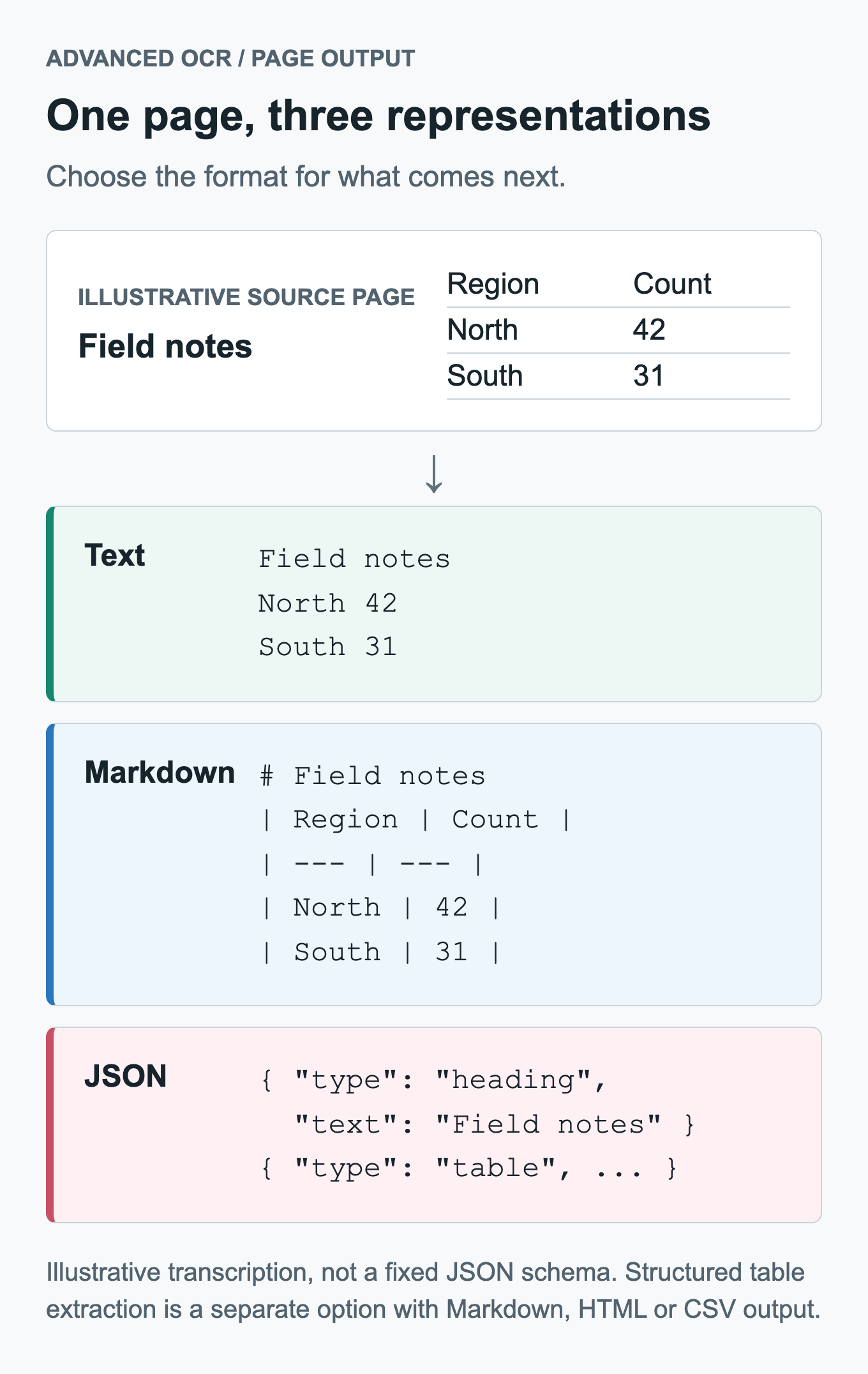
The same page can serve different workflows: text for simple transcription, Markdown for a readable document, and JSON for code that consumes structured blocks. The example is illustrative, not a guaranteed JSON schema or an OCR accuracy sample.
Tables, structured, independent of OCR mode
Alongside page OCR, PDF Extractor can now transcribe detected Table regions into machine-readable tables -- Markdown (GFM), HTML, or CSV -- via the same advanced engine. This is a separate toggle (ExtractTables / --extract-tables) from OcrMode, so you can turn on structured tables without running full-page OCR, or combine both: page-level Markdown output with tables kept structured inside it, instead of flattened into transcribed text.
Use the PDF table extraction workflow when the deliverable is a spreadsheet-ready table rather than a transcription of the entire page.
On the web
Advanced OCR is available on Starter and Business plans (same tier gate as OCR generally). In the extraction UI, open Advanced Settings, set OCR mode to Page, and switch the OCR engine dropdown from "Tesseract (plain text)" to "Advanced OCR model (structured or plain text)" -- an output-format picker (Text / Markdown / JSON) appears once that's selected. Table transcription has its own checkbox and format picker (Markdown / HTML / CSV), independent of the OCR settings.
The same controls are available directly on the PDF extraction REST API:
curl -X POST https://pdf-xtract.com/api/extract-elements \
  -H "Authorization: Bearer pdf-ext_your_token" \
  -F "[email protected]" \
  -F "Categories=Table" \
  -F "OcrMode=page" \
  -F "OcrEngine=advanced" \
  -F "OcrOutputFormat=markdown" \
  -F "ExtractTables=true" \
  -F "TableFormat=markdown"
The advanced engine runs against a server-configured model -- you don't need your own API key or GPU. If you're driving PDF Extractor from Claude or another MCP client, the MCP server exposes the identical ocr_engine / ocr_output_format parameters.
On the desktop -- fully local, still free-form
The offline PDF extractor runs the same advanced-OCR concept with no network round-trip and no per-page cost. Download PDF Extractor Desktop to process private documents locally. In Settings → OCR Engines you can point it at:
- The desktop-managed model -- no setup. Qwen3-VL 4B Instruct is the default; Qwen3.5 4B and Gemma 4 12B QAT are also selectable from the same picker. All run locally via an embedded llama.cpp runtime, downloaded once and cached on disk.
- A local Ollama server -- point the app at
http://localhost:11434and pick any vision-capable model you already have pulled. - A local LM Studio server -- same idea, default
http://localhost:1234/v1.
The same options are exposed on the desktop CLI:
pdf-extractor-desktop extract input.pdf -o output \
  --ocr page --ocr-engine advanced --ocr-output-format markdown \
  --advanced-provider managed \
  --extract-tables --table-format markdown
or against a running Ollama server:
pdf-extractor-desktop extract input.pdf -o output \
  --ocr page --ocr-engine advanced --ocr-output-format json \
  --advanced-provider ollama --advanced-model qwen3-vl:4b-instruct
Because it's local, none of this counts against a page quota, and the document never leaves the machine -- the same privacy story as the rest of the desktop app, just extended to the OCR step. GPU acceleration (Metal, CUDA, ROCm, Vulkan, DirectML, depending on platform) applies to the managed models the same way it applies to element detection.
Requirements at a glance
| Capability | Web | Desktop |
|---|---|---|
Tesseract page/element OCR (text only) | Starter or Business | Included |
Advanced OCR (text/markdown/json, page mode only) | Starter or Business, server-configured key | Included -- managed model, or bring your own via Ollama/LM Studio |
| Structured table transcription (Markdown/HTML/CSV) | Starter or Business, server-configured key | Included -- same provider options as advanced OCR |
Try it
- Run OCR on scanned PDFs as Markdown, JSON, or text in the web app
- Extract tables from PDFs as CSV, Markdown, or HTML
- Automate it with the REST API or the MCP server
- Download PDF Extractor Desktop to run advanced OCR fully offline
If you're choosing between the web and desktop versions generally, see Web vs Desktop -- Which Version Is Right for You?.